Agent Status & Sessions
Monitor AI agent progress with real-time status indicators, notification bell, and session resume.
Vertical Tabs shows real-time status indicators, attention dots, and session resume for agents running across tabs.
Status indicators
Section titled “Status indicators”Each agent tab shows a real-time status icon in the sidebar.
No icon is shown. The agent is waiting for input or has not started yet.
Working
Section titled “Working”An animated spinner appears next to the tab name. The agent is actively running, reading files, writing code, or executing commands.
Permission needed
Section titled “Permission needed”A shield icon with an orange dot indicates the agent is paused and waiting for approval. Switch to that tab to review the action and approve or reject it.
Review ready
Section titled “Review ready”A checkmark icon with a blue dot means the agent has finished and is ready for review.
Attention dots
Section titled “Attention dots”Orange and blue dots appear on tabs that need your attention:
- Orange dot - the agent needs your permission to continue
- Blue dot - the agent is done and ready for your review
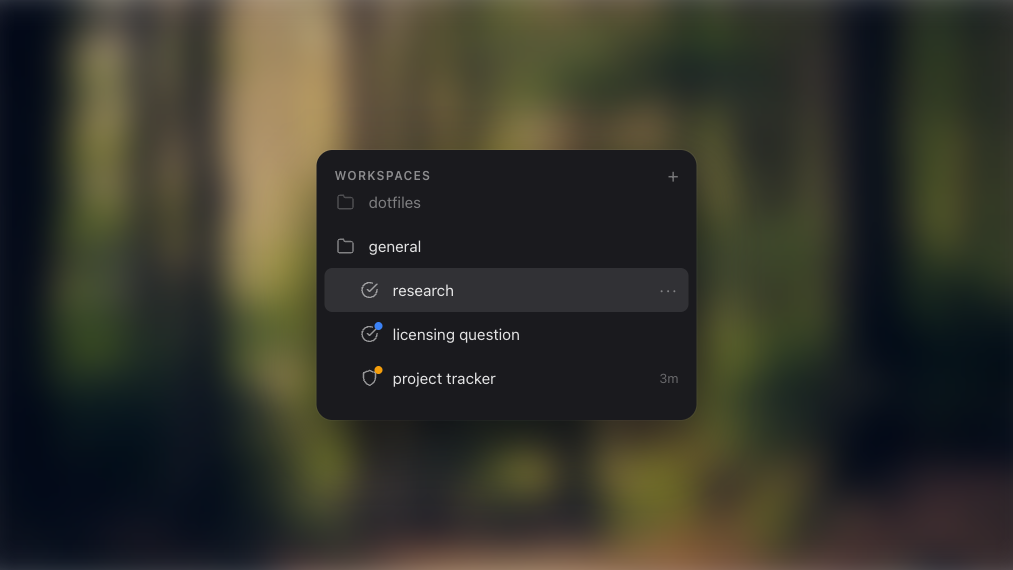
Dots clear automatically when switching to that tab.
The sidebar shows which tabs need attention from a single view.
Agent icon
Section titled “Agent icon”When Vertical Tabs detects an AI agent running in a tab, the agent’s icon appears in the top bar next to the tab name.
Session resume
Section titled “Session resume”If Vertical Tabs is closed while agents are running, sessions are preserved.
When you reopen the app, tabs with previous agent sessions show a resume screen with two options:
- Resume - pick up where the session left off. The agent restarts with its previous context and session history.
- Cancel - dismiss the resume screen and start a regular terminal tab.
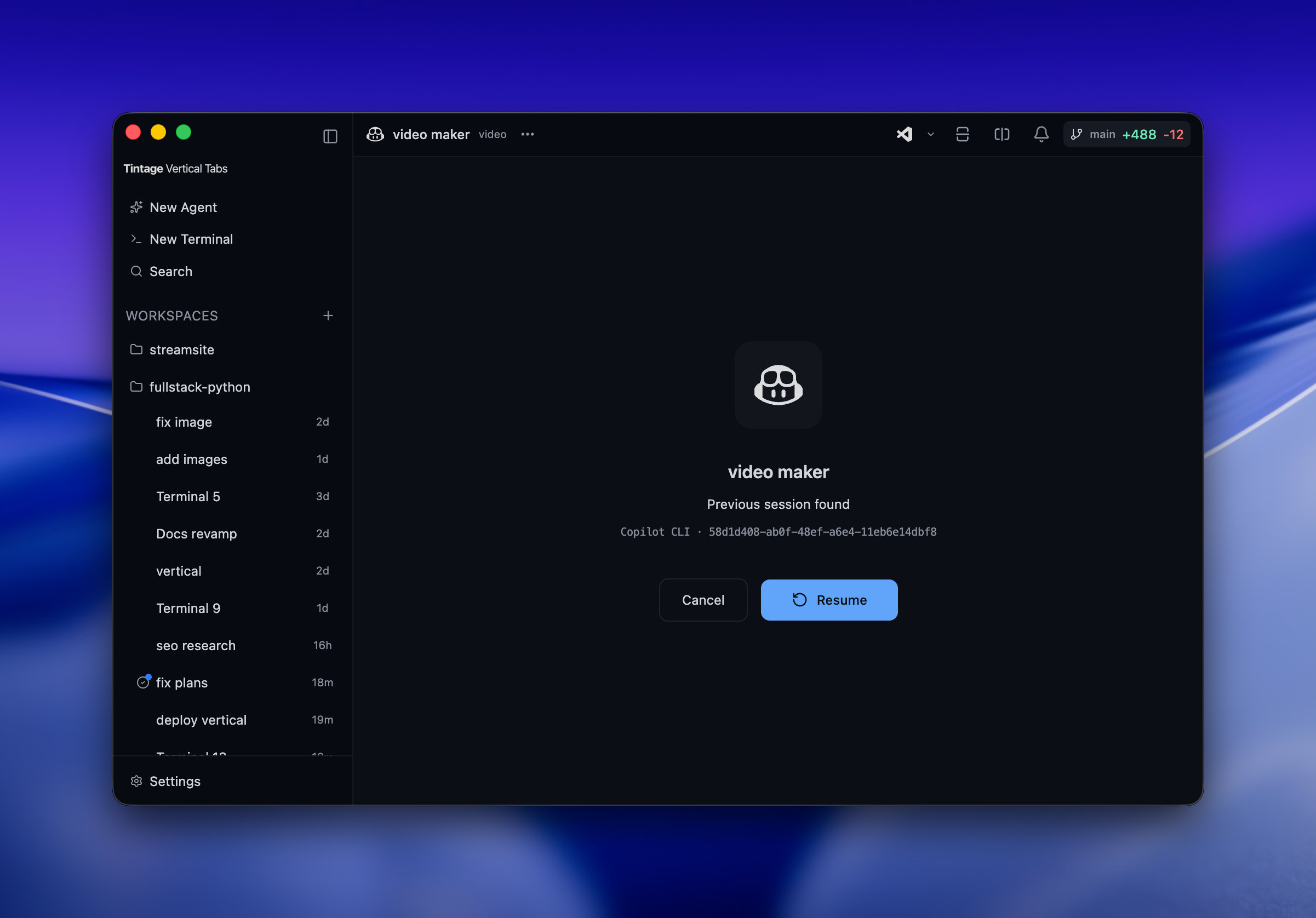
This works for any agent that supports session persistence.
Canceling resume
Section titled “Canceling resume”Running multiple agents
Section titled “Running multiple agents”There is no limit to how many agents run at once. Launch as many as needed across different tabs and workspaces.
The sidebar shows the status of all agents at once:
- See which agents are working, waiting, or finished
- Spot permission requests with orange attention dots
- Jump to any agent tab with a single click
Notification bell
Section titled “Notification bell”The bell icon in the top bar provides a centralized feed of agent status changes. Click the bell to see recent events and jump to the relevant tab.
A small blue dot appears on the bell when there are unread notifications.
What triggers a notification
Section titled “What triggers a notification”- Agent finished - the agent completed its work and is ready for review
- Permission needed - the agent is blocked and waiting for your approval
Agent start events do not create notifications.
Reading notifications
Section titled “Reading notifications”Click the bell to open the dropdown. Each notification shows:
- The tab name and workspace it belongs to
- Whether the agent finished or needs input
- A relative timestamp (e.g. “3m ago”)
Unread notifications have a blue left border. Read notifications have no border.
Actions
Section titled “Actions”- Click a notification to navigate to that tab and mark it as read
- Mark all as read using the checkmark button in the header
- Clear all using the X button in the header
Limits
Section titled “Limits”Notifications are session-only and not persisted across app restarts. The list caps at 50 entries. The oldest notification is removed when a new one exceeds the limit.
Practical patterns
Section titled “Practical patterns”- Run the same task with different agents to compare approaches
- Split a large project across multiple agents, each handling a different part
- Keep a “helper” agent in one tab for questions while another agent builds features
Each agent runs independently in its own tab. They do not interfere with each other.