Launching Agents
Launch AI coding agents directly from Vertical Tabs with the agent launcher.
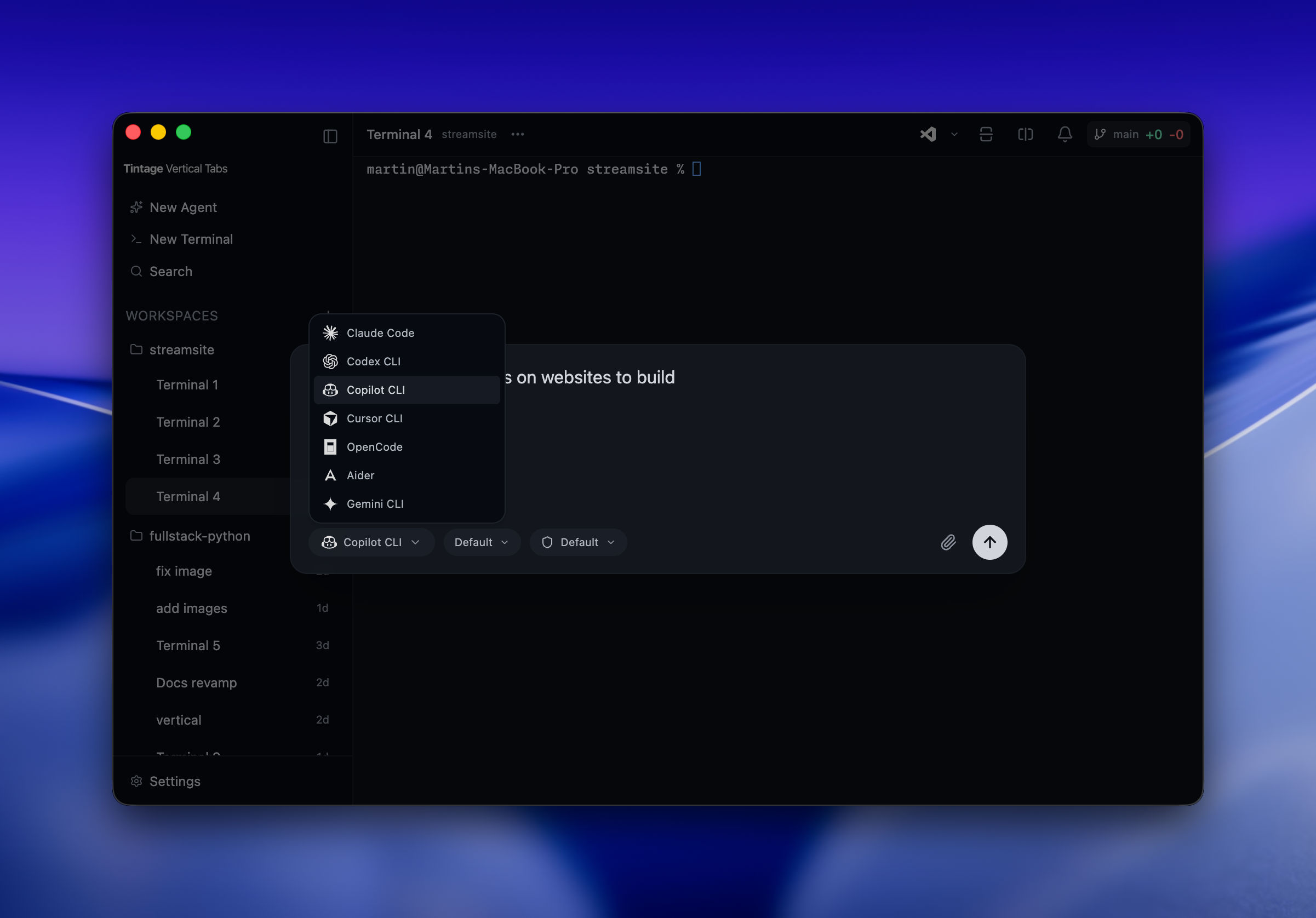
Vertical Tabs launches AI coding agents directly from the app. Open the agent launcher, pick an agent, write a prompt, and run it in a new terminal tab.
Opening the agent launcher
Section titled “Opening the agent launcher”Press ⌘ Cmd + N to open the agent launcher modal. It is also available from the menu bar under File > Launch Agent.
The launcher contains agent selection, prompt input, file attachments, and model configuration.
Supported agents
Section titled “Supported agents”Vertical Tabs works with seven AI coding agents:
- Claude Code - Anthropic’s CLI coding agent
- Codex CLI - OpenAI’s command-line coding agent
- Copilot CLI - GitHub’s terminal-based coding assistant
- Cursor CLI - Cursor’s AI agent for code editing
- OpenCode - Open-source AI coding agent
- Aider - AI pair programming in your terminal
- Gemini CLI - Google’s CLI coding agent
Writing a prompt
Section titled “Writing a prompt”Type the task in the prompt field. Include the goal, relevant files, and expected outcome.
The tab name is automatically set from the prompt text.
Attaching files
Section titled “Attaching files”- Type
@in the prompt to search workspace files by name. A dropdown appears with matching files. Select a file and it appears as a chip above the textarea. You can add multiple files this way. - Drag and drop files directly onto the launcher modal
- Click the paperclip icon to open a file picker and select files
File chips added via @ show the file icon and name, and can be removed by clicking the X. When you launch the agent, the selected file paths are included in the prompt automatically.
Drag-and-drop and paperclip-attached file paths are inserted as text into the prompt field.
Choosing a model
Section titled “Choosing a model”Use the model dropdown to pick from available models, or type a custom model name directly into the field.
The dropdown includes a search bar at the top for filtering models by name. The search resets each time the dropdown opens.
The last model selection is remembered per agent.
Default vs Unrestricted mode
Section titled “Default vs Unrestricted mode”The launcher includes a mode toggle that controls how the agent handles actions:
Default mode (recommended)
Section titled “Default mode (recommended)”The agent requires approval for actions before making changes to files, running commands, or performing other operations.
Unrestricted mode
Section titled “Unrestricted mode”You can always review what it did after it finishes.
Setting defaults
Section titled “Setting defaults”Go to Settings > Agents to configure defaults:
- Default agent - which agent the launcher selects by default
- Default model - which model is pre-selected for each agent
The launcher also remembers the last used agent and model between sessions.
What happens after launch
Section titled “What happens after launch”Once you click Launch, Vertical Tabs uses the launch target you selected to decide where to run the agent.
Launch targets
Section titled “Launch targets”Use the target dropdown (next to the mode toggle) to control where the agent opens. When there are multiple workspaces, a search bar appears at the top of the dropdown to filter targets and workspace names.
| Target | Behavior |
|---|---|
| Auto (default) | Reuses the focused idle pane, finds another idle pane, splits to create a new pane, or opens a new tab as a last resort |
| Horizontal Split | Always creates a new pane to the right of the focused pane |
| Vertical Split | Always creates a new pane below the focused pane |
| New Tab | Always opens a new tab in the current workspace |
| <Workspace name> | Opens a new tab in the chosen workspace |
Your selection is remembered between sessions.
Auto mode
Section titled “Auto mode”- Vertical Tabs checks if the focused pane in the current tab is idle (no running process)
- If idle, the agent starts there
- If busy, Vertical Tabs looks for any other idle pane in the tab
- If all panes are busy, a new split pane is created
- The agent starts
For single-pane tabs, the tab name is updated from your prompt text. In multi-pane tabs, the tab name stays as-is.
From there:
- Watch the agent work in real time as it reads files, writes code, and runs commands
- Respond to permission requests when the agent needs approval (in Default mode)
- Switch to other tabs and come back later. The agent continues in the background.
For details on tracking agent progress across tabs, see Agent Status & Sessions.